Only One Mac Here's How to Safely Run OpenClaw on It
OpenClaw is very popular right now. I’ve already deployed and tested it on Ubuntu and Windows Server (taking advantage of free trial promotions from Unicom and Telecom to get one month of server access and tokens).
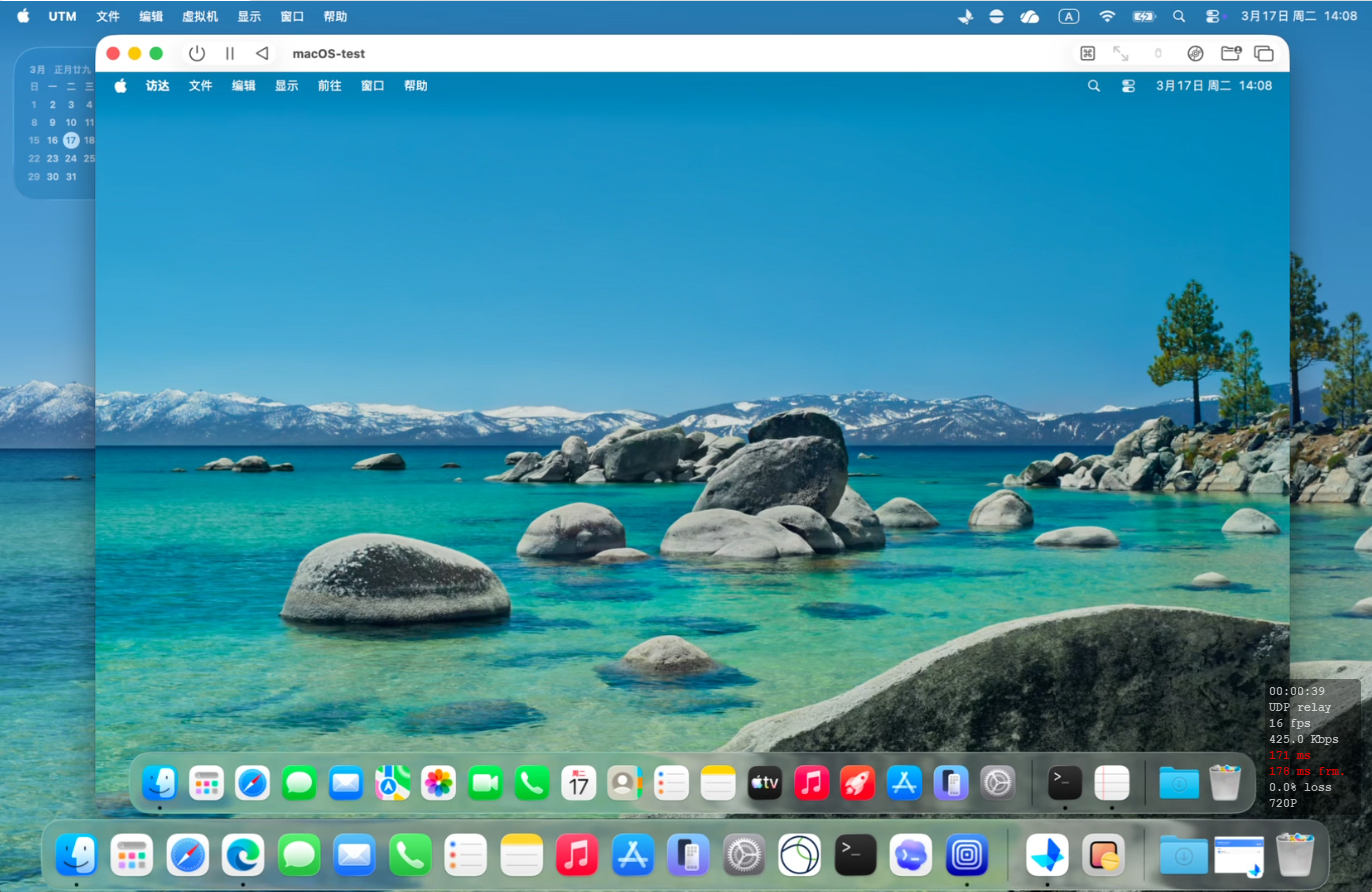
However, I hadn’t tried it on macOS yet. The problem is I only have one MacBook Air, so a bare-metal deployment on this machine isn’t really an option. Then it occurred to me — Windows has virtual machines, so why not install a VM on the Mac and run macOS inside it? Easier said than done — and it turned out to be extremely simple, just clicking Next all the way through.
1. Install a Virtual Machine
1.1 Download UTM
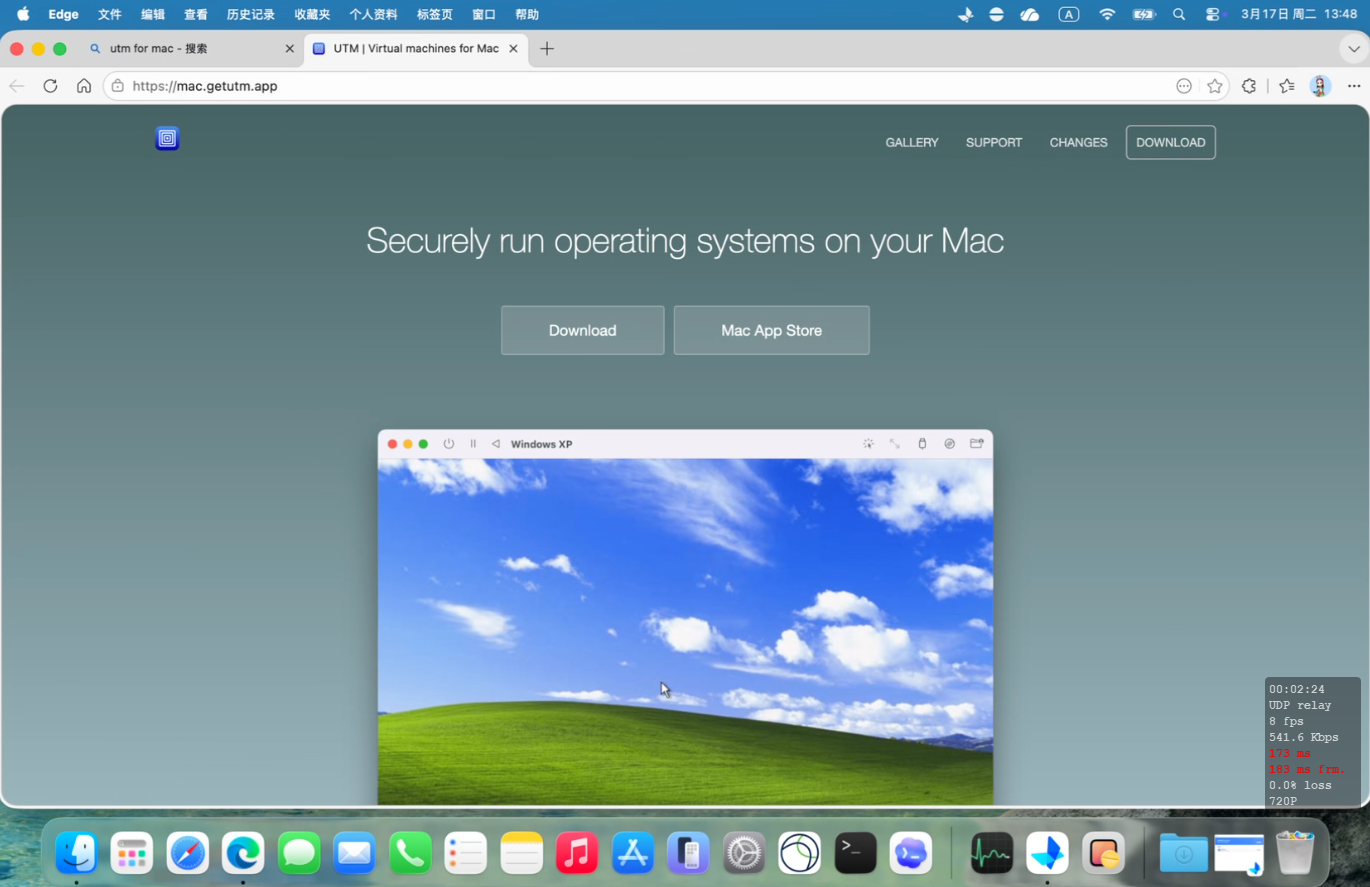
For running a macOS virtual machine on a Mac, UTM is the go-to choice — no hesitation needed. Download: https://mac.getutm.app/
Note: Do NOT download UTM from the Mac App Store — the store version requires payment. The version from the official website is completely free and functionally identical.
1.2 Install the OS
Once UTM is installed, create a new virtual machine in UTM, select a system image, and proceed with the installation.
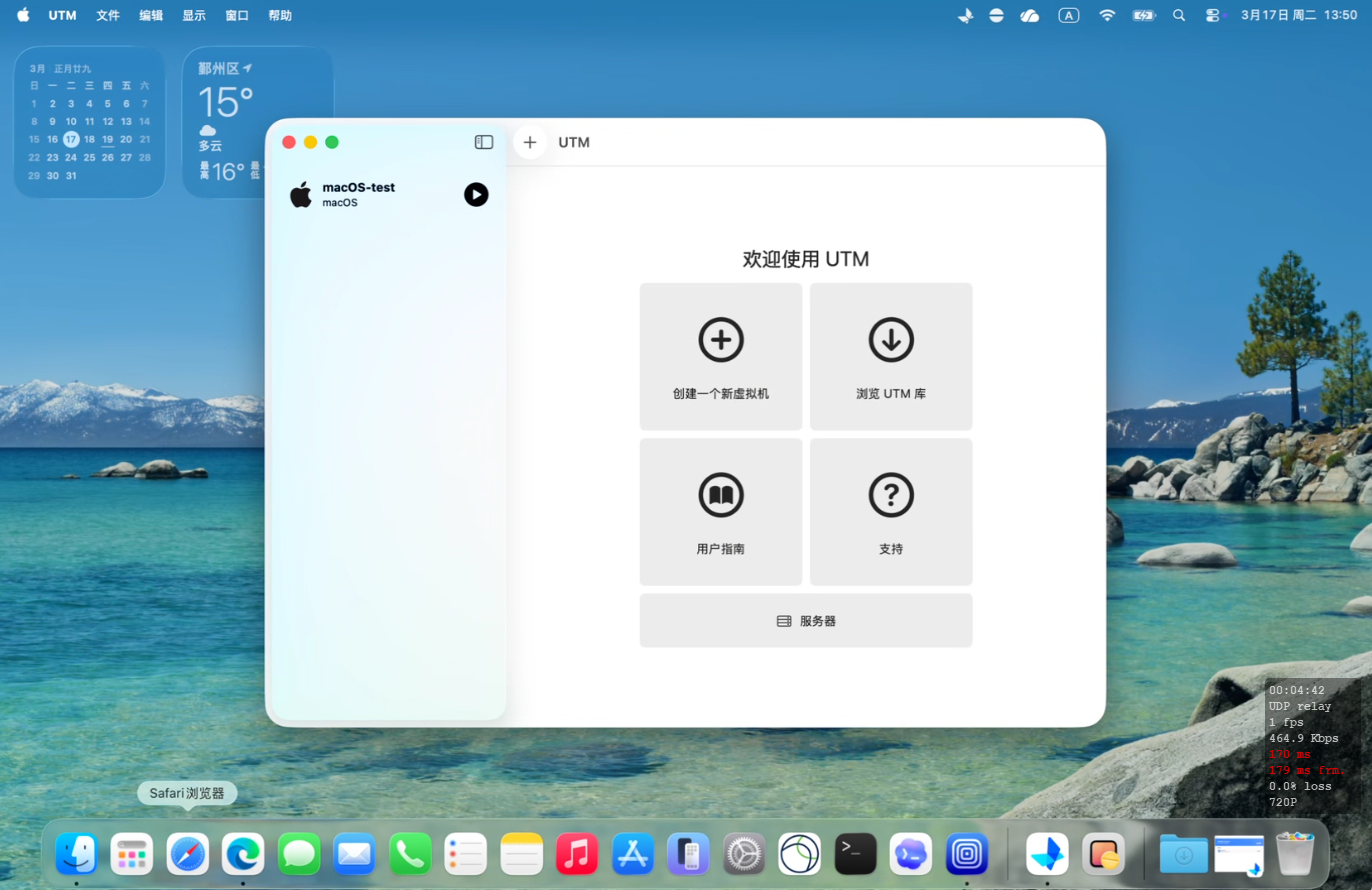

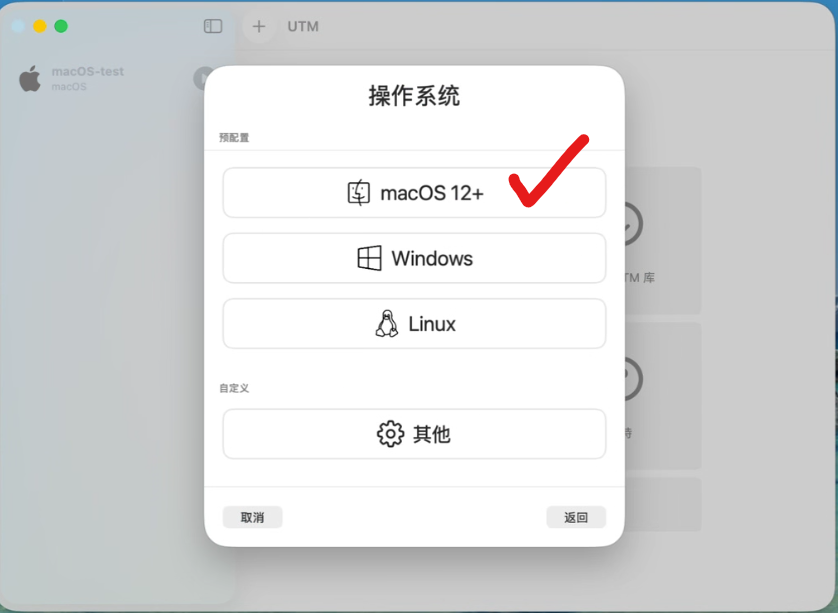
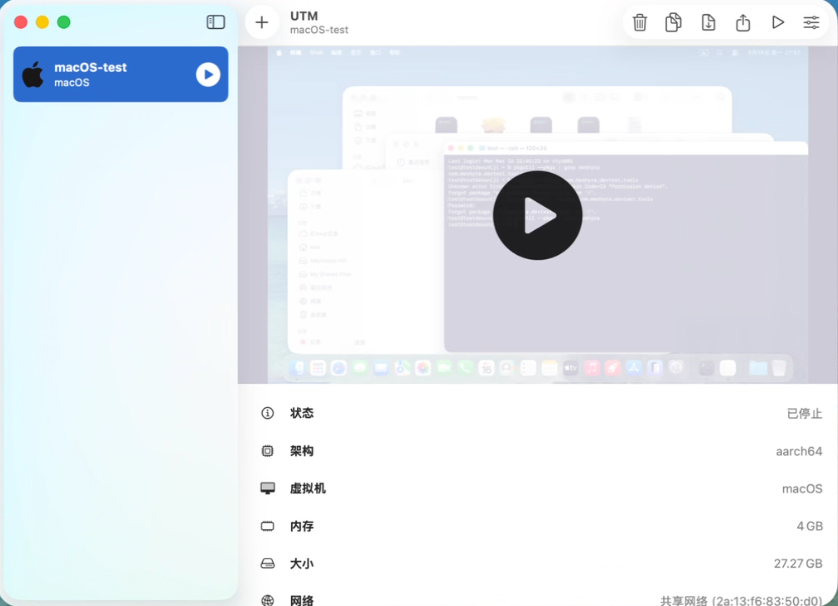
The OS installation process won’t be covered in detail here — it’s straightforward, just click Next all the way through.
2. Initialize macOS
Setting up macOS inside the VM is the same as setting up a brand-new Mac for the first time — nothing special to explain here.
3. Prevent the MacBook Air from Sleeping and Turning Off the Screen
Keep the MacBook Air plugged into its charger at all times. Don’t worry about damaging the battery — when plugged in, the battery isn’t in use. Go to System Settings → Battery → Battery Health → Enable Optimized Battery Charging. That said, do keep an eye on temperature: running too hot will shorten battery life. A cooling stand is recommended, and in summer, a small desk fan aimed at the machine helps.
The MacBook Air will auto-sleep by default. To prevent this, go to Battery → Options → Enable “Prevent automatic sleeping when the display is off while connected to power adapter”. Also set Wake for network access → Always.
Download
Amphetaminefrom the App Store, and in its Quick Settings check Allow Display to Sleep.Turn the MacBook Air’s screen brightness all the way down, and let the MacBook keep running in the background.
Install OpenClaw
There are many installation guides available — please refer to other tutorials for the details. I won’t repeat them here.